How to prepare your card print files
To avoid any disappointment, it is important to prepare your files carefully. This tutorial is very quick and easy to follow.
Prerequisites
- Image creation and editing software (Canva, Photoshop, GIMP, etc.)
- A 300 DPI image
- And that’s it!
Choose the card format you wish to print:
- Poker (63mm x 88mm)
- Tarot (70mm x 120mm)
- Oracle (89mm x 146mm)
- Bridge (57mm x 89mm)
- Mini (44mm x 64mm)
- Square (60mm x 60mm)
Choose your finishes.
- Rounded or square corners. Please note that you cannot choose the type of rounding. Please provide a rectangular file in all cases.
- Total weight (including paper and lamination).
- 300g/m² cards that are very flexible and translucent
- 350g/m² rigid cards with low light transmission
- Matt or Glossy. All cards are laminated (front and back); the matt finish gives a subtle look with no glare or smudges on your cards, quite understated. The glossy finish produces vibrant colours and a very premium look, but is prone to glare and fingerprints.
File creation and required format.
Once you’ve decided on the type of cards, open your graphic design software. If you don’t have any, create a free account on Canva or download the free, open-source software The GIMP.
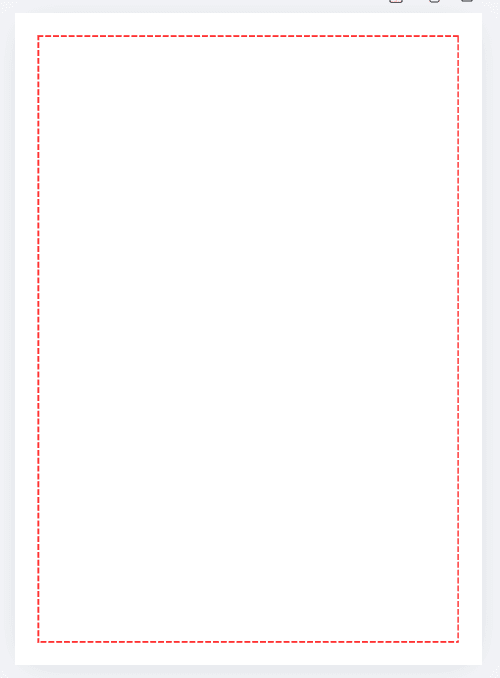
Example of a poker card in Canva without bleed:
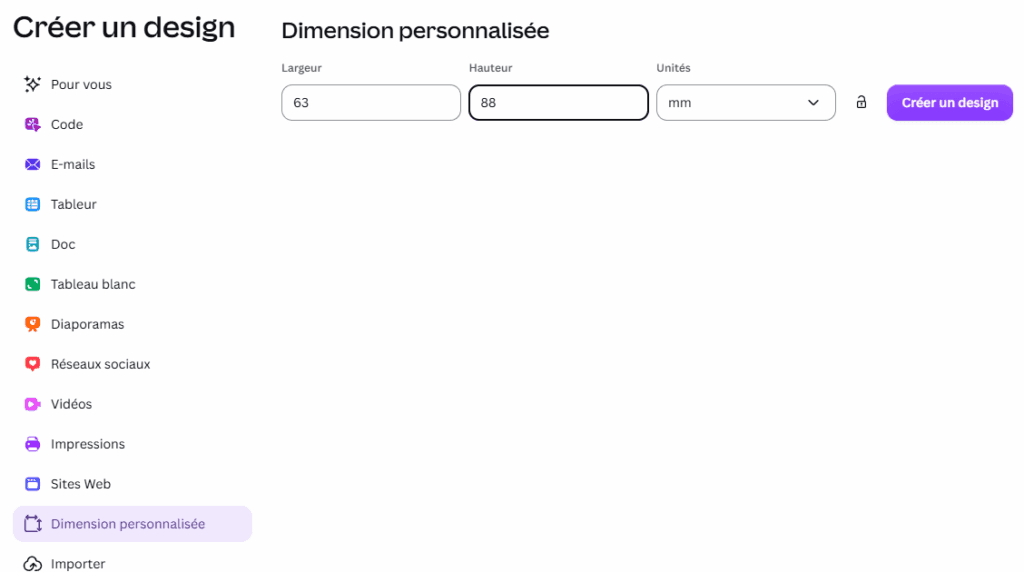
First of all, create a new blank design in the required format. For example, if you want to create a poker-sized card, choose custom dimensions of 63 x 88 mm; if you want to design it in pixels, keep the same aspect ratio, i.e. a file of 1116 x 1559 px.
Create a safe zone for your cards.
The safe zone is the area where your important content must appear. It will never be truncated or cut off, regardless of any margin of error in the cutting machines. If you have designs at the edges of the card, place them just outside the safe zone so that they are trimmed off. The safe zone must be positioned 1.5 mm from each edge of the card. On a poker-sized card, this corresponds to a rectangle measuring 57 x 82 mm.
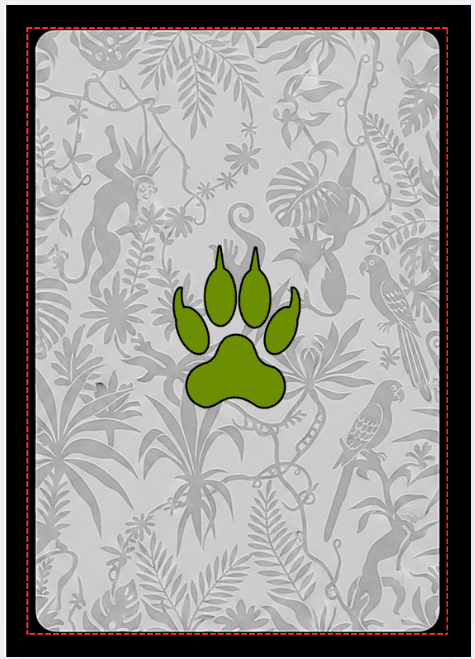
The safe zone is marked with red dots below. The edges of the card are black, so no designs are likely to be cut off.
Upload your file.
Once you have created your file, export it in PNG, JPG or PDF format at 300 DPI to ensure a high level of visual quality (there is no point in uploading files at over 600 DPI as you won’t notice any difference).
A few more recommendations.
If you have files with rounded corners, DO NOT submit a file with rounded corners. If your corner rounding angle differs from that of the cutting machine, you may experience visual artefacts on the corners of your cards. Please submit a rectangular file with right-angled corners.
Please use a bleed if your files have textured edges. If the edges of your files are not plain, I strongly recommend that you provide a larger file with a 1.5mm bleed.
An image summarising all the templates for creating your cards
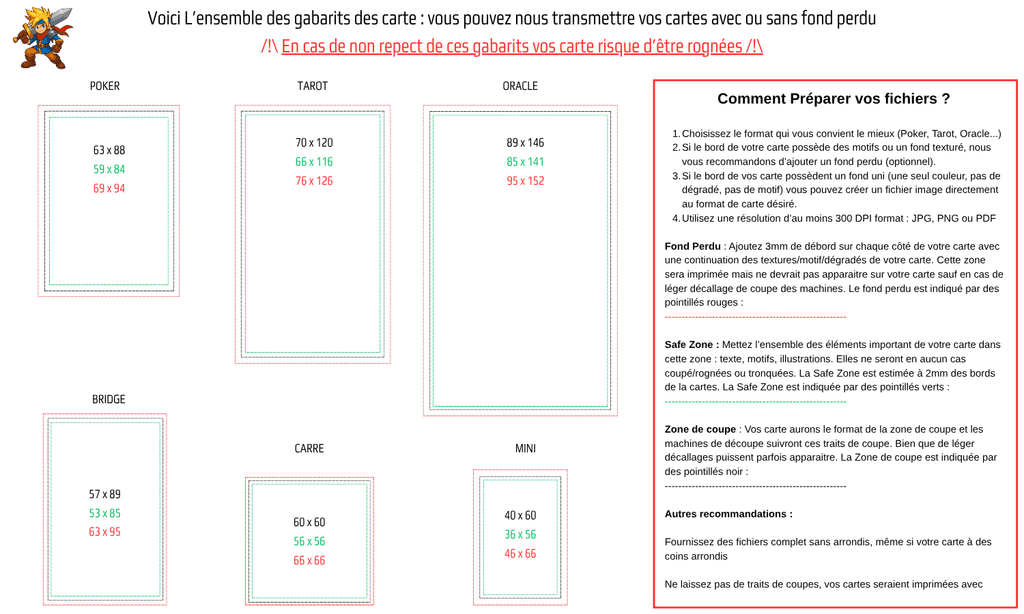
In summary
How to create a file for printing your cards. Time required: 20 minutes.
- Choose your card format
Poker, Tarot, Bridge, Oracle, Carré… - Choose your finishes
- Single-sided or double-sided
- Rounded or square corners
- Matt or gloss
- 300 g/m² or 350 g/m² if required – take a look at some examples of printed cards
- Upload your file
- Using the software of your choice: Canva, GIMP, Photoshop…
- In your card’s format, at 300 DPI resolution
- In JPEG, PNG or PDF format
- Keep your important content at least 2 mm from the edges (safety margin)
- Add a bleed if necessary
If the edge of your card is textured or has a gradient, add 1.5 mm of bleed on each edge. If the background is a solid colour, we’ll take care of it. - Other recommendations
- Do not round the corners of your file, even for a card with rounded corners.
- Do not include cut lines, bleed or the safety margin in your file.
- If you have any queries, please contact us via the contact form.